Chat, reusable agents, and website widgets.

Ask a question now, or save the model, instructions, and sources you want for the next conversation.

Workspace chat

Ask once or return to a conversation.

Choose the built-in Default Core to start a normal chat, or choose a Core that can search the datasets you need. Model and tool availability follows the workspace plan and the Core’s settings.

For answers grounded in your documents, open citations to inspect the source. When workspace tools contribute, response activity can show what ran.

Get your first cited answer
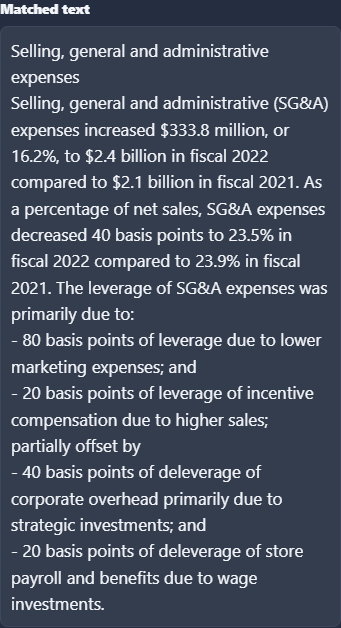
Matched text in MyKB’s citation viewer reports that fiscal 2022 expenses decreased to 23.5% of net sales from 23.9% in fiscal 2021.
The cited passage from Ulta Beauty’s annual report shows the fiscal year and the figures behind the answer.

Cores

Define what an agent can use.

Save an agent that is ready for the next conversation. Cores shared in a team workspace let people repeat a task with the same instructions and sources.

Instructions
Define the job, what to include in an answer, and what to do when sources are missing.
Model
Choose from models available in the active workspace.
Datasets
Select the indexed files and folders the agent can search.
Search
Where available, use keyword, fuzzy, semantic, or graph search to find relevant passages in datasets.
Live tools
Choose connected tools for current lookups and supported actions in workspace chat.
Execution
Use Direct for a normal turn or Planner for a task with multiple steps.
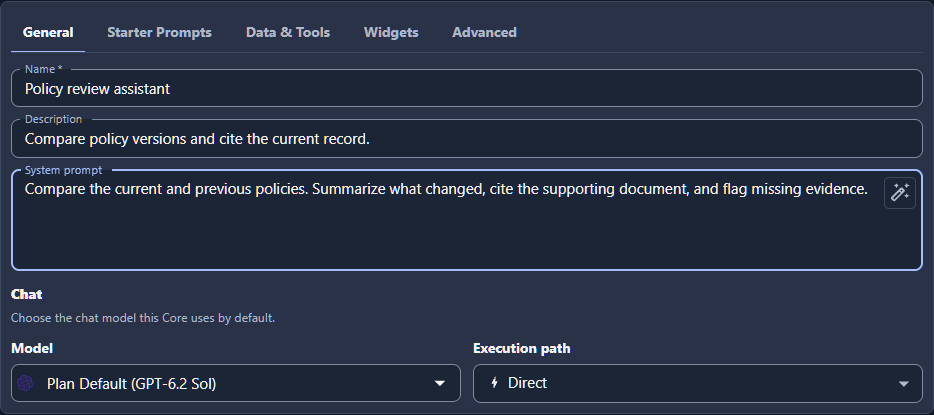
MyKB Core editor with a policy review agent’s instructions, model selector, and execution path.
A policy review Core with instructions to compare versions, cite the current policy, and flag missing evidence. View the full-size Core editor screenshot

Website chatbot

Publish a Core on your website.

Use a dedicated Core with visitor-approved datasets. On eligible plans, a widget can run on the websites you specify. It uses the saved Core’s knowledge and keeps visitor conversations separate.

Choose an opening message, set upload and usage limits, and try the live demo after enabling the widget. The owner’s live MCP tools and the workspace citation interface remain in workspace chat.

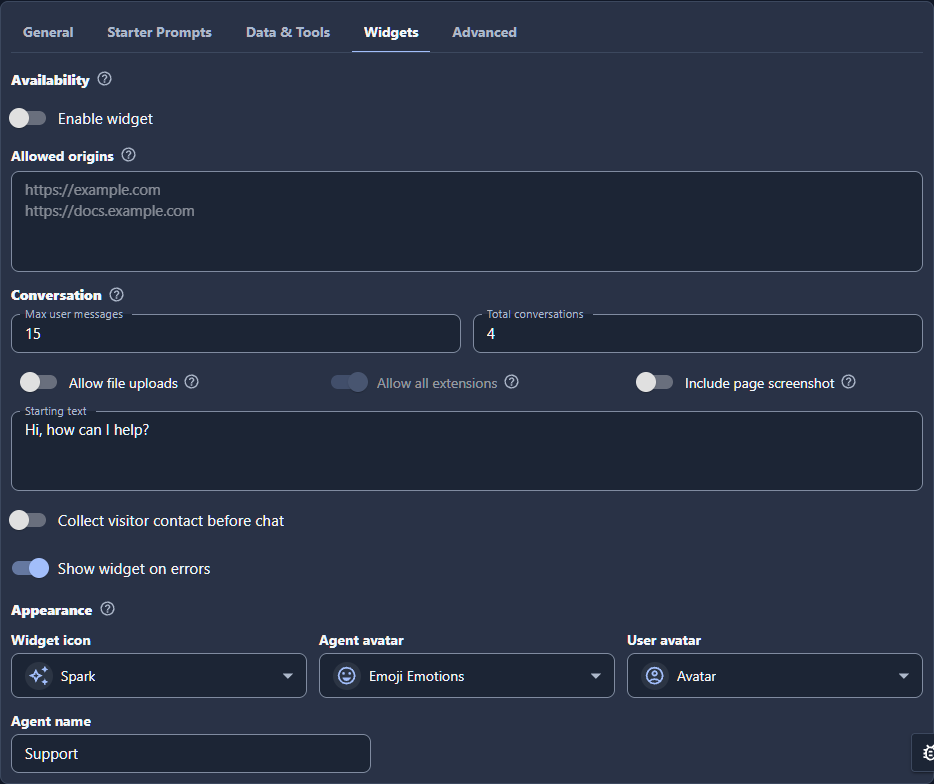
MyKB Widgets tab with controls for enabling the embed, allowed origins, message limits, uploads, and starting text.
The Widgets tab sets which websites can host the chatbot and how visitors can use it. View the full-size widget settings screenshot

Sources, live tools, and outputs

Knowledge sources

Ask about one file

Attach a supported document, image, or audio file to a workspace chat. File support depends on the selected model and plan.

Reuse a collection

Index selected folders from connected storage, such as Google Drive or SharePoint, or use files you upload into MyKB. Connectors and plans determine which sources and refresh options are available.

Browse connectors

Live tools

Retrieve current information

Attach supported live tools to a Core to look up information outside your indexed documents, such as a recently updated issue or knowledge-base page.

Review actions

Choose the tools the Core may call. Some tools can perform supported actions, and workspace response activity can show when they ran.

Review tool controls

Chat outputs

Work with more than text

With supported models, generate images or transcribe an attached audio file. Read-aloud replies are available with supported speech settings.

Download the result

Where your model and Core support file generation, download generated files from workspace chat.